
Monthly OSINT CTF Events

CTF Events
How to Play
Everyone plays in teams, there is no size limit, even individuals are their own team. CTF Events start the 1st of every month at 21:00 EET. And end on the 5th at the same time. The fastest time from your team is counted, so only one person in your team has to submit the answers.Register using the form on this page, we'll send you announcements, starting materials and scoreboards for each CTF Event.If you have any suggestions, questions or anything else, please reach out in the ctf-support channel in Discord. Scoring is based on the answers you submit, and the following multipliers.
Sign-up
Multipliers
| Multiplier | Conditions | Amount |
|---|---|---|
| Early Bird | Descending bonus for first 5 submissions, threshold of at least 3 right answers | X 2,5 -> X 2,0 |
| Perfectionist | Submit all answers correctly, write-up not mandatory | X 2,0 |
| Seal Team Six | Get all other multipliers, including 1st place Early Bird | X 5,0 |
| The Scribe | Submit a detailed write-up, hosted publicly online | X 2,5 |
| Charity Worker | CTF post with link to Hacktoria on social media | X 2,0 |
| Bounty Hunter | Multiplier counted per easter egg submitted | X 1,5 |
| The Clanker* | Yeeted wrong AI answers over the fence | X 0,2 |
*Only for copy pasted AI analysis of the actual task. When in doubt, we'll assume human. Using AI as a tool is fine.
Previous Events
| Title | Month | Download Materials | Write-up |
|---|---|---|---|
| Sacred Stone | 05.2026 | Sacred Stone Download | n.a. |
Scoreboard
The Master Scoreboard
On this scoreboard you'll find all the teams and their cumulative points for the Hacktoria CTF Events they played. Scores and the amount of events played, are used to calculate a relative score, so you can see which teams perform.
Contracts
How to Play
Contracts are what we call our CTF Challenges. They're story driven, clandestine espionage assignments for SERPENT. Simply download a CTF and start playing.You get a badge or card for completing each CTF Challenge. Drop this badge or card in our Discord server's "card-brag" channel and receive XP and Coins. The XP is purely for ranking in Discord, the coins can sometimes be used for CTF hints.The ingredients show you what to expect for each CTF.
Ingredients
🌎 – Geolocation
🔎 – Forensics
🚢 – Maritime
🌐 – Internet
🥸 – Social
🧩 – Logic
💾 – Data
Easy Contracts

Naval Intrusion
An enemy vessel has entered allied water, it's your task to identify the vessel and make sure our allies can take kinetic action.
🚢🌐
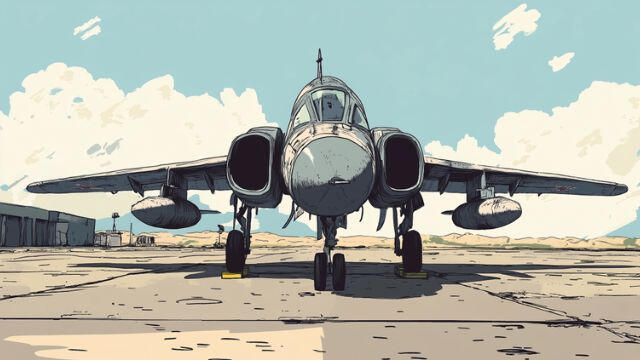
Cold War Enemies
Stop an international arms smuggling network ran by our old friend, Maksim Kotova, by locating a military airfield.
🌐🌎

Nightmare Fuel
Investigate disturbing bodycam footage and figure out what happened in this nightmare inducing story. Horror themed CTF.
💾

Gas Attack
Identify a target city from surveillance images to prevent a terrorist group's planned nerve gas attack.
🌎

Saving Isabella
Locate the distress signal of your SERPENT team member, Isabella Moreno and bring her home safely. Her life depends on it.
💾🌎

Friendly Fire
An unknown tank has been spotted and we need you to figure out what type this is. Identify the tank in the picture.
🌐🔎

Alien Abduction
Find out where and when this abduction took place, you don't have much to work with, so it will surely test your skills.
🌐

The Spy Who Vanished
Track down former MI5 operative who now appears briefly on social media before vanishing into the shadows.
🥸🌐

Prisoner Of War
Geolocate a captured French soldier's prison from a photo delivered by an escaped child hostage.
🌎

The Sleeper Cell
Decode encrypted instructions sent from extremist group leaders to sleeper cells to prevent planned terror attacks.
💾🧩

Chasing Bigfoot
Investigate the truth behind Sasquatch beings that evolved alongside early humans, as revealed by alien contact.
🌐

Lost At Sea
Decrypt a surveillance ship's final distress beacon data to uncover how and where it sank in the Black Sea.
💾🔎🧩

Dialogues From Atlantis
Decipher an ancient dialogue about Atlantis between classical philosophers to help a Monaco art collector validate theories.
💾🧩

Where’s Klumgongyn
Locate a rogue alien overseer's vacation spot using geolocation data from their taunting photo to retrieve them.
🌎

Emergency Transmission
Decode an encrypted emergency transmission from a downed Klumgon pilot to determine the crash location in Ecuador.
💾

Intergalactic Warfare
Locate a crashed alien scout ship and its dangerous occupants by decoding intercepted coordinates.
🌎

Kidnapped
Decode a cipher sent by kidnappers to locate a diplomat's daughter before the 24-hour deadline expires.
💾🧩

The Killer Clown
Geolocate a buried victim's location from a killer clown's photo within their remaining oxygen supply.
🌎

Rogue Agent
Hunt down a rogue CIA operative who disappeared in 2021 and now runs a Russian electronics smuggling operation.
🌎💾🔎

On The Wire
Analyze intercepted network traffic from a Malaysian politician's office to expose their involvement.
💾🔎

The Latvian Connection
Locate an active terrorist safe-house from data found on a captured operative's USB drive.
🌎

Operation Wiretap
Analyze intercepted internet traffic from a surveillance operation to uncover details about an upcoming conference.
💾🔎
Medium Contracts

Catch Me If You Can
Help the Birmingham police track down a serial killer, who leaves taunting hints and plays with his victims, in a twisted run against the clock.
🧩🌐🔎

Undercover Fleet
Identify a mysterious vessel with suspicious cargo. Track its last known locations and help the MAOC-N stop the arms smugglers.
🚢🌎🌐

Echoes of Retaliation
Locate the execution site of several Israeli soldiers in Iran. Time is running out, you must hurry to prevent a war from breaking out.
🌎🧩

Line of Control
Translate Pakistani military documents and find the locations of imminent attacks on Indian Airforce bases.
🌎💾🌐

The Listeners
Locate a coastal European meeting spot where business rivals plan to conspire against a French client.
🌎

The Russian Blackmailer
Help a friend of James identify and locate a Russian blackmailer who's threatening to release a damning video.
🌎🥸🧩🌐

Last Flight
Find the last known location of a plane and the country where an ECCM device was installed, using a photo of the aircraft.
🌎🌐

Road To Nowhere
Pinpoint a terrorist organization's hidden safehouse location from map data found in their captured Dropbox files.
🌎💾

The Butcher
Decrypt a serial killer's laptop files using mysterious hex data to reveal locations of potential new victims in Berlin.
💾🔎

The Cartel Connection
Find a kidnapped Colombian agent's location from a distress photo before a drug cartel can execute them.
🌎

Return Of The Krohndahkyr
Translate an ancient Sardinian text to understand why peaceful Krohndahkyr aliens turned hostile toward early human settlers.
💾🌐

Bloodhound
Track a fugitive's location using photos automatically uploaded from a hidden camera after GPS tracking was jammed.
🌎🌐

Far Away Outpost
Track Kenyan poachers using humanitarian and construction work as cover for their illegal wildlife smuggling operations.
🌎

Kanonniers
Locate an old cannon used by The Golden Creed operatives for covert message exchanges in their analog intelligence network.
🌎

PeePeeKun
Solve a rival intelligence group's intricate training challenges while racing to outperform other agencies in a competitive exercise.
💾🌐🧩🌎

Klumgongyn Returns
Translate ancient Volrac text to uncover philosophical secrets from our alien collaborator Klumgongyn.
💾🧩

Lost in Time
Decipher an alien language inscription from 1762 to locate stranded extraterrestrial survivors using a discovered photograph.
💾🌐🧩🌎
Hard Contracts

Florida Snow
Locate a cartel's drug shipment drop point from coded runner instructions intercepted by DEA informant.
🌎
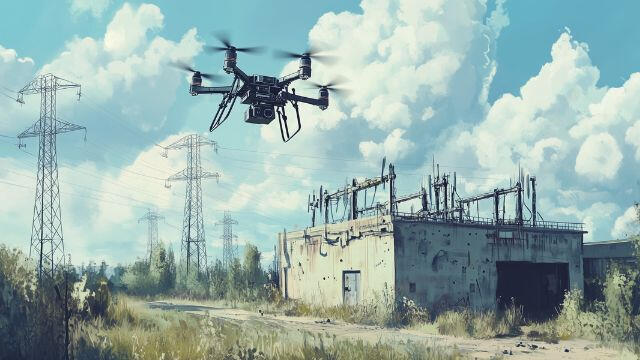
Substation Bombing
Locate and identify the substation targeted by a Russian drone strike on Ukrainian critical power infrastructure.
🌐🌎💾

Appalachian Aliens
Decipher the mysterious audio file that sets USB drives on fire and sends grown men insane with strange signals.
🔎🧩🌐

The Road to Rome
Track down an ancient Roman artifact containing bloodline DNA to eliminate a centuries-old crime family targeting SERPENT.
🌎🧩🌐

The Midnight Slayer
Track down a serial killer terrorizing Baltimore who mutilates victims and sparks citywide panic through media leaks.
🧩🌎🥸💾

Lost Down Under
Decode seven cryptic images and text intercepted from domestic terrorists planning attacks across Australia.
💾🌎🧩

A Strange File
Analyze encrypted data from seized terrorist computers to uncover covert meeting locations for Omani authorities.
💾🌎🔎

Message From Hell
Translate inscriptions from a cursed Brazilian tablet that drove its research team insane.
💾🧩

The Copycat Killer
Analyze a copycat killer's browser history from seized laptop data to prevent further serial murders.
💾🔎🧩
Certifications
How do certifications work?
OSINT Certification CTF's are meant to test and prove your skills.Download the materials. You'll get a ZIP file with a briefing, instructions and your starting materials. After completing all the steps, you find a link to a form.Fill out the form and claim your personalized certificate.The ingredients give you an idea of the skills needed to complete the challenge.
Ingredients
🌎 – Geolocation
🔎 – Forensics
🚢 – Maritime
🌐 – Internet
🥸 – Social
🧩 – Logic
💾 – Data

Intro to Chinese OSINT
Follow traffic patterns originating from Chinese sources. Multiple sites appear to be distributing invite codes for t00ls, a Chinese hacking forum.
🌐🥸💾🧩

Intro to Maritime OSINT
Help the NMIO (National Maritime Intelligence-Integration Office) with their extensive backlog of Maritime OSINT work and get your feet wet.
🚢🌎🌐🧩💾
Our Universe
SERPENT
You are part of a clandestine espionage group called “SERPENT: Special Espionage, Reconnaissance, Protection, Enforcement, and Neutralization Taskforce”. A group of carefully selected individuals, tasked with maintaining the delicate balance on our blue planet. You work diligently to keep the world safe from a wide variety of threats.You have access to alien technology, working closely together with your alien liaison “Klumgongyn”, a delegate from the planet Varnyr. SERPENT takes on assignments that require the highest levels of confidentiality. Keeping the historic timeline of our planet in check, preventing alien invasions and eliminating anomalies.No assignments for evil are accepted, earning SERPENT a name for being the right hand of justice. And you, Special Agent K, are the best they've got.
Bombardier Global 8000
SERPENT’s “Shadow Wing” is a turbo‑charged Bombardier Global 8000 that feels like a luxury jet, a flying fortress, and a covert headquarters rolled into one. It’s the fastest civil jet since Concorde, cruising at Mach 0.92 and topping out at Mach 0.94, with an 8,000‑nautical‑mile range that lets SERPENT go anywhere. Its roomy cockpit, plush crew quarters, ultra‑clean air system, and turbulence‑damping wings make it the ultimate mobile headquarters.

Overseer
The head of SERPENT is the Overseer, a role reserved for someone who has earned respect. The role can only be fulfilled by a long standing team member, and after a unanimous favorable vote by all team members.

Julia Sharpe
🇬🇧 Overseer and Mission Coordination
Julia Sharpe holds several degrees from both Oxford and Cambridge. Serving as high-risk negotiator and handler in MI6 for several years. She joined SERPENT as an analyst, quickly becoming the spiritual heart of her team mates. When the previous Overseer resigned due to health complications, Julia was voted in as replacement.
ASIC
The ASIC (All Source Intelligence Cell), provides all intelligence services needed by SERPENT. With a wide range of specialists, this is the beating heart of intelligence operations. Members of the ASIC are the most qualified.

Special Agent K
🌍 Open Source Intelligence and Forensics
You, the player character, the star of the whole operation. Special Agent K, an expert in the field of Open Source Intelligence and Forensics. Coming from a long background of clandestine operations and with a strong sense of right and wrong, your unmatched intelligence gathering skills are vital.

Oriana Olivetti
🇦🇷 CTI and Signals Intelligence Specialist
Oriana started her career in criminology and later cyber security. Proving herself a skilled and disciplined hacker, with a knack for application security and signals intelligence. She was recruited after her collaboration with SERPENT during an operation in Argentina. She is religious about her favorite drink, mate. Drinking it incorrectly will earn you a stern look.

Dmitri Zechev
🇧🇬 Red Team and Tech Support
Dmitri Zechev is a Bulgarian prodigy hacker and the technological mastermind of all the Red Team operations in SERPENT. Teaching himself programming at age 7, Dmitri became a local legend for exposing corruption within his countries' tumultuous government. Internally he is led by a strong moral compass, and will always follows that.

Mei Huang
🇨🇳 Psychology, Linguistics and interrogations
Mei Huang, born and raised in Shenzhen China. She's a brilliant psychologist and expert in criminal behavior, she's also fluent in 12 languages. A Cambridge graduate and former MI6 analyst, she was recruited into SERPENT for her unmatched ability to profile targets and analyze psychological weaknesses.

Isabella Moreno
🇲🇽 Historian and Cultural Expert
Isabella Moreno is a historian and intelligence specialist from Mexico City and a key member of SERPENT's intelligence efforts. Driven by a passion for history and justice after losing her parents to cartel related violence, Isabella joined the military as an intelligence officer before being recruited during a joint exercise.
Field Operations
They like their missions shaken, but not stirred. Impeccably dressed, intelligent and sometimes a little too confident. These Field Operatives often deploy well before boots hit the ground, providing that extra human touch on location.

Fox Meyer
🇺🇸 Extraterrestrial Liaison and Field Operative
Growing up with a fascination for aliens and outer space, Fox joined the TFBI right after college. Eventually spearheading their Y-Files program, where he came into direct contact with aliens. This made him the perfect fit to be the liaison officer with Klumgongyn and the Volracs aliens race. He really does, want to believe.

James Brown
🇬🇧 Espionage and International Crime Expert
Beginning his career at MI6, James became a legend in the intelligence community for his cunning espionage abilities. Infiltrating various criminal enterprises and taking them down became second nature. He's familiar with Julia Sharpe, who recruited James after she became Overseer. James likes them shaken, not stirred.

Cassandra Laurent
🇫🇷 Diplomatic Relations and Political Expert
Cassandra started her career in the French military as an intelligence officer, after resigning she pursued a career in politics, eventually moving to Brussels. It was this combination of career choices that made her an excellent choice for SERPENT. Bringing valuable contacts, insights and negotiation skills. Speaking 15 languages is also a big bonus.
B.T.R.U.
The BTRU (Borderless Tactical Response Unit) is responsible for all tactical deployments. This elite unit can reach far outside the confines of the airplane. Their primary task is extraction of HVT's and hostage rescue situations.
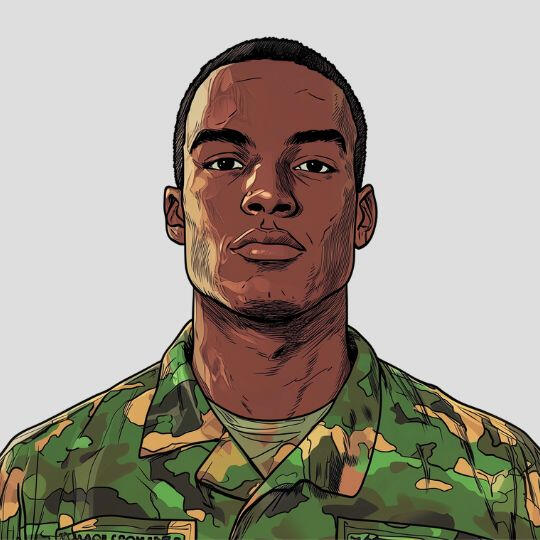
Gabriel Adams
🇺🇸 BTRU Team Leader and Martial Arts Expert
Growing up in project housing in Baltimore, Gabriel managed to shake his past by joining the US Marines and later becoming a Delta Force operator. He was recruited into SERPENT during his second deployment in Afghanistan. Quickly rising through the ranks and becoming the BTRU's team leader.

Mikko Häyhä
🇫🇮 Sniper and Weapons Expert
Growing up on a farm in the east of Finland, Mikko volunteered to become a professional soldier after his conscription period ended. After a long stint with the Finnish Jaegers, and volunteering for several deployments, he was recruited into SERPENT for his excellent marksmanship skills, and ability to perform in extreme weather conditions.

Amir Hussaini
🇮🇶 Breacher and Explosives Expert
Amir immigrated to France after growing up in war-torn Iraq. Unable to find meaningful employment, he joined the French Foreign Legion and served with honor for many years. Excelling in close quarters combat, SERPENT took notice during a joint operation and recruited him to the BTRU as a breacher.

Liam Irwin
🇦🇺 Assaulter and Survival Expert
Growing up in the Australian outback, Liam loves the outdoors. After a decade in the Australian SAS, Liam wanted something different. Not ready to sit in an office or give up shooting, he crossed paths with Gabriel at a recruitment drive for veterans in Australia. This opened the door he was searching for and joined SERPENT.
Pilots
The Bombardier Global 8000 isn't going to fly itself, especially given her various modifications and diverse mission set. Not to mention exotic locations and landing sites, the plane requires two experienced pilots.

Pablo Iglesias
🇨🇱 Pilot and Mechanical Engineer
Growing up at the base of the Andes mountains in Chile, son to a local crop duster, Pablo was always interested in flying. After enlisting in the Chilean airforce, he found himself operating a variety of fixed and rotary wing aircraft. It was this combination of skills that got him recruited by SERPENT during a joint rescue operation.

Peter Jansen
🇳🇱 Pilot and First Responder
Serving in the Dutch Coastguard as a helicopter pilot for a decade, Peter switched to fixed wing aircraft and became a commercial airline pilot. Quickly getting bored of the monotonous flights, he one day ran into Pablo in a bar in Panama. Pablo introduced him to Julia and the rest is history. He is never seen without a piece of cheese nearby.
The Volracs
The first alien race to ever have contact with planet earth. They're highly intelligent and adaptive. Working together with a select group of people, one of which is SERPENT. They share knowledge and help keep the universe safe.

Klumgongyn
🪐 Earth bound Alien contact point
Klumgongyn, an alien from the planet Varnyr, serves as the liaison for the Volracs within SERPENT. Rescued during Operation Galaxios, Klumgongyn decided to stay to improve collaboration with humans. He's close friends with Fox, who he met while working in Area 51 with the TFBI. He's always friendly and has a quirky sense of humor.